Get Gurukul Typing Skill Running — Step by Step
Follow these steps in order. Everything here also works in Hindi — use the language buttons below whenever you like.
Prefer to watch?
शुरू करने से पहले क्या चाहिए
Gurukul Typing Skill Windows 7 (Service Pack 1 के साथ), Windows 8.1, Windows 10 और Windows 11 — सभी पर चलता है।
आपके कंप्यूटर में कम से कम 2 GB RAM होनी चाहिए — यह ऐप टाइपिंग सेंटर में मिलने वाले सामान्य कंप्यूटर पर भी आराम से चलता है।
ऐप इंस्टॉल करने के लिए आपके कंप्यूटर में लगभग 100 MB खाली जगह चाहिए।
ऐप डाउनलोड करने, अकाउंट बनाने और पहली बार लॉगिन करने के लिए इंटरनेट ज़रूरी है। उसके बाद आप कई दिनों तक बिना इंटरनेट के भी प्रैक्टिस कर सकते हैं।
अलग से कुछ भी इंस्टॉल करने की ज़रूरत नहीं है — सेटअप फाइल खुद ही ऐप के लिए ज़रूरी सब कुछ इंस्टॉल कर देती है, जिसमें .NET Framework 4.8 नाम का एक छोटा अपडेट भी शामिल है।ऐप डाउनलोड करें
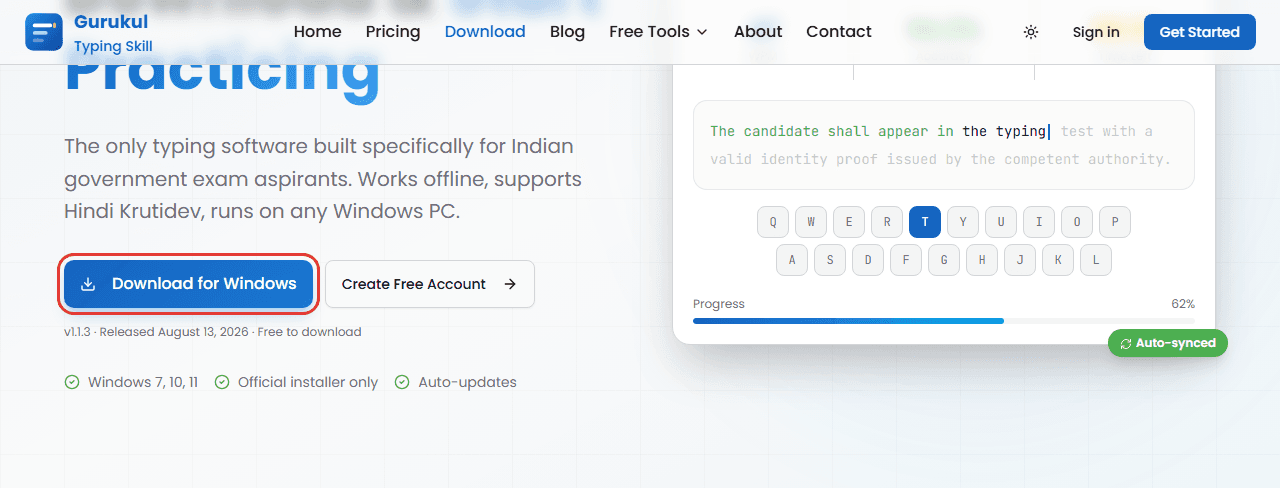
अपना ब्राउज़र (जैसे Chrome या Edge) खोलें और Gurukul Typing Skill की डाउनलोड पेज पर जाएं।
'Download for Windows' बटन पर क्लिक करें। फाइल डाउनलोड होना शुरू हो जाएगी — यह आम तौर पर आपके 'Downloads' फोल्डर में सेव होती है।
ऐप डाउनलोड करने के लिए अकाउंट बनाना या लॉगिन करना ज़रूरी नहीं है।
फाइल थोड़ी बड़ी है (100 MB से ज़्यादा), इसलिए धीमे इंटरनेट पर डाउनलोड होने में कुछ मिनट लग सकते हैं। फाइल खोलने से पहले उसका डाउनलोड पूरा होने दें।Windows एक चेतावनी दिखा सकता है — घबराएं नहीं
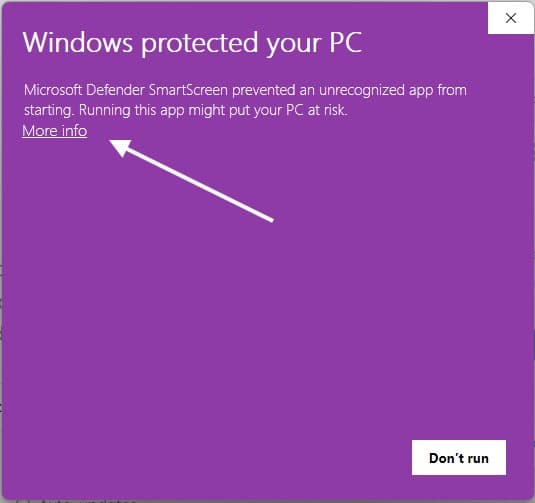
जब आप डाउनलोड की हुई फाइल खोलेंगे, तो Windows कभी-कभी एक नीली स्क्रीन दिखा सकता है जिस पर लिखा होगा 'Windows protected your PC'। ज़्यादातर कंप्यूटरों पर यह स्क्रीन आएगी ही नहीं।
हमारा ऐप आधिकारिक डिजिटल सर्टिफिकेट से साइन किया हुआ है, इसलिए इस चेतावनी का यह मतलब बिल्कुल नहीं है कि ऐप में कोई खतरा है। Windows नई रिलीज़ हुई फाइलों के लिए यह स्क्रीन तब तक दिखा सकता है जब तक काफी लोग उन्हें इंस्टॉल न कर लें।
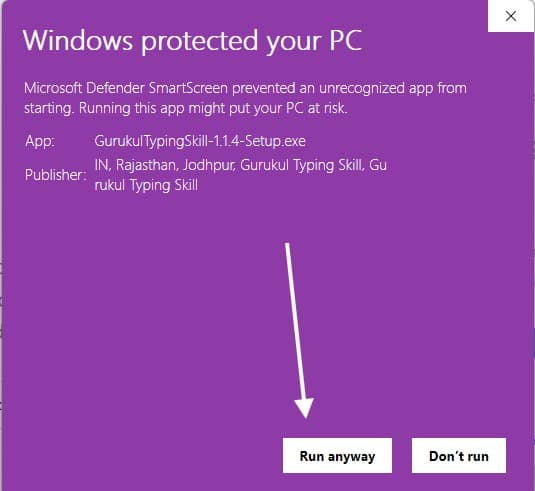
अगर यह स्क्रीन दिखे, तो 'More info' पर क्लिक करें — वहां आपको हमारा वेरिफाइड पब्लिशर नाम दिखेगा। फिर 'Run anyway' पर क्लिक करके आगे बढ़ें।
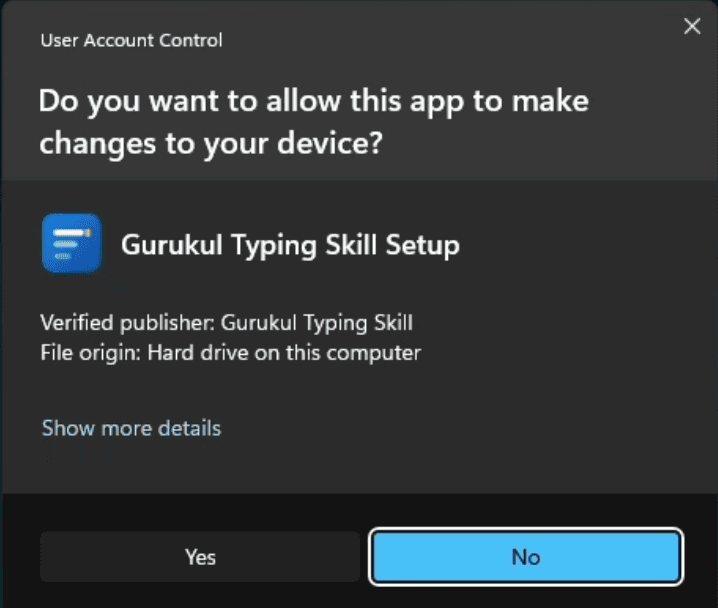
इसके तुरंत बाद Windows एक और सवाल पूछेगा: 'Do you want to allow this app to make changes to your device?'। इस स्क्रीन को ध्यान से देखें — इस पर 'Verified publisher: Gurukul Typing Skill' लिखा होता है। यानी Windows खुद पुष्टि कर रहा है कि यह ऐप असल में हमारी तरफ से ही आया है। आगे बढ़ने के लिए 'Yes' पर क्लिक करें।
आपका एंटीवायरस (जैसे Quick Heal या K7) भी नई डाउनलोड हुई सेटअप फाइल के लिए ऐसी ही सावधानी दिखा सकता है। अगर ऐसा हो, तो वहां भी 'Allow' या 'Run anyway' चुनें।
Gurukul Typing Skill हमेशा हमारी आधिकारिक वेबसाइट से ही डाउनलोड करें — असली, साइन किया हुआ ऐप पाने का यही सबसे सुरक्षित तरीका है।ऐप इंस्टॉल करना
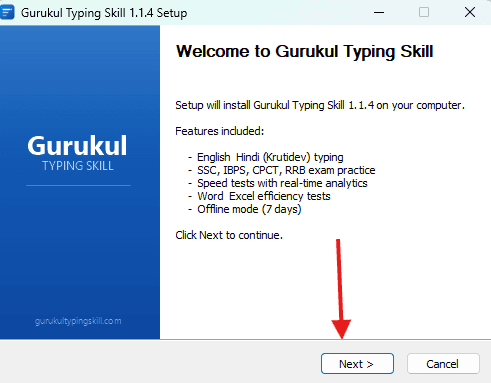
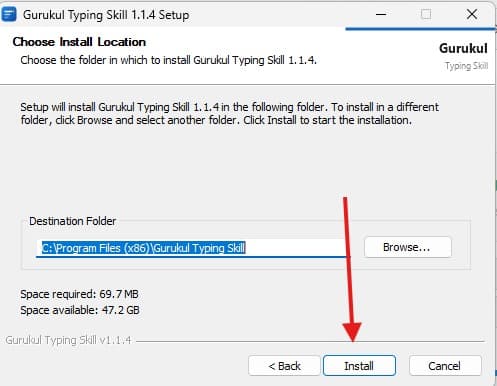
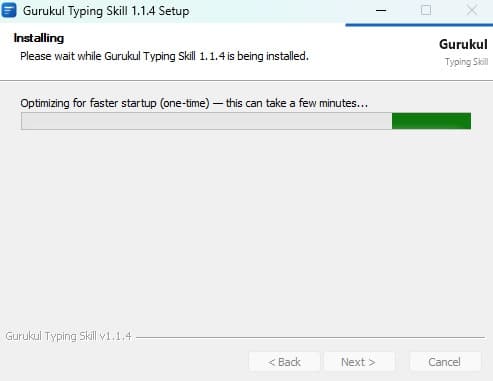
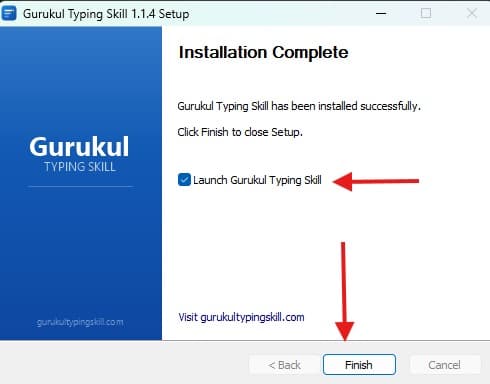
डाउनलोड की हुई सेटअप फाइल पर डबल-क्लिक करके इंस्टॉलर शुरू करें।
स्क्रीन पर दिए गए स्टेप्स को फॉलो करें — ज़्यादातर सिर्फ 'Next' और फिर 'Install' पर क्लिक करना काफी है। किसी सेटिंग को बदलने की ज़रूरत नहीं है।
एक स्टेप में 'Optimizing for faster startup' जैसा मैसेज दिखेगा। इसमें कुछ मिनट लग सकते हैं और स्क्रीन ऐसी लग सकती है जैसे रुक गई हो — यह बिल्कुल सामान्य है। इस दौरान इंस्टॉलर को बंद न करें और कंप्यूटर को रीस्टार्ट न करें।
आखिरी स्क्रीन पर 'Launch Gurukul Typing Skill' वाले बॉक्स पर टिक रहने दें और 'Finish' पर क्लिक करें — ऐप अपने आप खुल जाएगा। अगली बार के लिए आपके डेस्कटॉप पर Gurukul Typing Skill का शॉर्टकट भी मिल जाएगा।
अगर 'Optimizing' वाला स्टेप ज़्यादा समय ले रहा है, तो बस इंतज़ार करें — बीच में बंद करने से बाद में ज़्यादा दिक्कत हो सकती है, इंतज़ार करना आसान रहता है।अपना अकाउंट बनाएं (वेबसाइट पर)
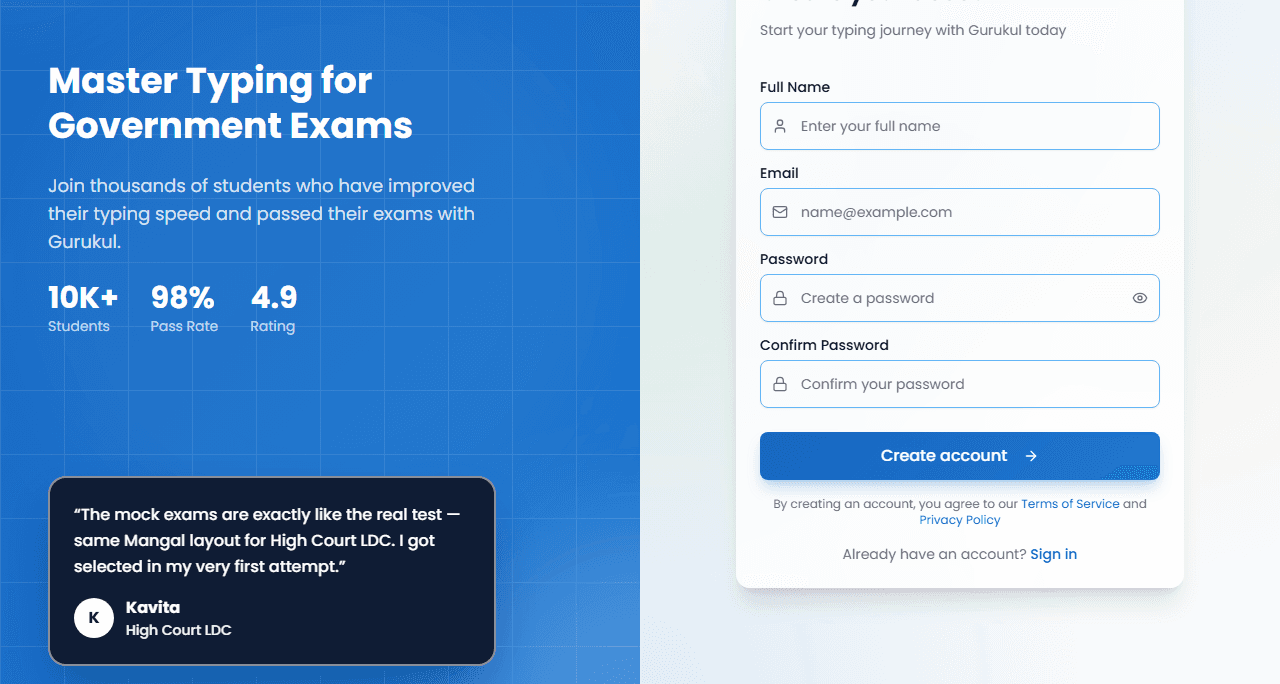
अकाउंट बनाने का काम हमारी वेबसाइट पर होता है, ऐप के अंदर नहीं। जब आप ऐप खोलकर 'Sign Up' या 'Register' पर क्लिक करेंगे, तो आपका वेब ब्राउज़र अपने आप खुल जाएगा।
वेबसाइट पर अपनी जानकारी भरें और साइन-अप फॉर्म सबमिट करें।
आपके दिए हुए ईमेल पते पर हम एक वेरिफिकेशन (पुष्टि) ईमेल भेजते हैं। अपना इनबॉक्स चेक करें — और Spam/Junk फोल्डर भी ज़रूर देखें, कभी-कभी ईमेल वहां चला जाता है।
ईमेल में दिए गए वेरिफिकेशन लिंक पर क्लिक करें। अगर आपने गलती से एक से ज़्यादा बार ईमेल मंगाया है, तो हमेशा सबसे नए (latest) ईमेल का लिंक इस्तेमाल करें — पुराने लिंक काम करना बंद हो जाते हैं।
ऐप में पहली बार लॉगिन करने से पहले अपना ईमेल वेरिफाई करना ज़रूरी है।पहली बार लॉगिन करना
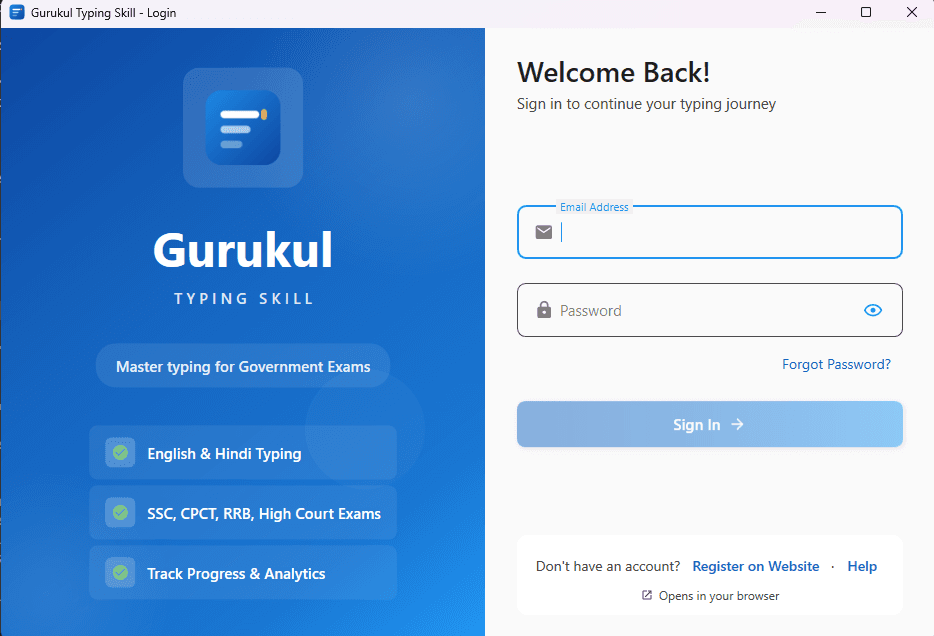
ऐप खोलें और अकाउंट बनाते समय इस्तेमाल किया गया ईमेल और पासवर्ड डालें। कोई OTP नहीं आता — सिर्फ आपका ईमेल और पासवर्ड चाहिए।
जब आप पहली बार लॉगिन करते हैं, तो ऐप आपके अकाउंट को इसी कंप्यूटर से जोड़ (लिंक) देता है। मतलब, आपका अकाउंट एक समय में सिर्फ एक ही डिवाइस पर चालू रह सकता है।
आप साल में 2 बार तक अपना डिवाइस बदल सकते हैं (जैसे अगर आपको नया कंप्यूटर मिल जाए)। डिवाइस बदलने के लिए हमारी सपोर्ट टीम को WhatsApp पर संपर्क करें — यह ऐप में खुद बदलने वाली सेटिंग नहीं है।
एक-डिवाइस का यह नियम आपके अकाउंट और आपकी प्रोग्रेस को सुरक्षित रखने के लिए है — इससे आपका अकाउंट किसी और के साथ शेयर या गलत इस्तेमाल नहीं हो पाता।
उसी कंप्यूटर पर लॉगिन करें जिसे आप नियमित रूप से इस्तेमाल करने वाले हैं, क्योंकि डिवाइस बदलने की एक सीमा है।हिंदी टाइपिंग सेटअप
जो हिंदी फॉन्ट चाहिए — Kruti Dev, DevLys और Mangal — वो ऐप इंस्टॉल करते ही अपने आप इंस्टॉल हो जाते हैं। आपको कोई फॉन्ट अलग से डाउनलोड या इंस्टॉल करने की ज़रूरत नहीं है।
ज़रूरी बात: ऐप में हिंदी टाइप करते समय अपने Windows का कीबोर्ड लैंग्वेज हमेशा English पर ही रखें (स्क्रीन के नीचे दाईं तरफ छोटा 'ENG' लिखा दिखता है)।
ऐप खुद ही आपकी English कीज़ को हिंदी अक्षरों में बदल देता है (Kruti Dev वाले तरीके से टाइपिंग) — Windows को हिंदी कीबोर्ड पर बदलने की ज़रूरत नहीं है।
अगर स्क्रीन पर कहीं भी हिंदी टेक्स्ट गलत या अजीब चिन्हों जैसा दिखे, तो सबसे बड़ी वजह यही होती है कि Windows का कीबोर्ड लैंग्वेज गलती से हिंदी पर बदल गया है। उसे वापस English (ENG) पर कर लें।Word और Excel टेस्ट के लिए Microsoft Office चाहिए
कुछ सरकारी परीक्षाओं में Word या Excel की टाइपिंग/एफिशिएंसी टेस्ट भी होती है। इनकी प्रैक्टिस Gurukul Typing Skill पर करने के लिए, उसी कंप्यूटर पर असली (genuine) Microsoft Word और Excel पहले से इंस्टॉल होना ज़रूरी है।
Office 2007 या उससे नया वर्जन काम करेगा, लेकिन सबसे अच्छे अनुभव के लिए Office 2010 या उससे नया वर्जन बेहतर रहेगा।
सामान्य टाइपिंग टेस्ट और पाठ (English और Hindi) के लिए Microsoft Office की ज़रूरत नहीं है — सिर्फ Word/Excel एफिशिएंसी टेस्ट के लिए चाहिए।
अगर आपके पास Microsoft Office नहीं है, तब भी आप ऐप के सभी लेसन और टाइपिंग टेस्ट इस्तेमाल कर सकते हैं — बस जब तक Office इंस्टॉल नहीं होगा, तब तक Word/Excel एफिशिएंसी टेस्ट उपलब्ध नहीं दिखेंगे।अब भी अटक गए? हम मदद के लिए यहां हैं
हमसे संपर्क करने से पहले कुछ बातें जांच लें: क्या आपका इंटरनेट ठीक से चल रहा है? क्या आपने SmartScreen की चेतावनी में 'Run anyway' पूरी तरह क्लिक किया था? क्या आपने वेरिफिकेशन ईमेल के लिए अपना Spam फोल्डर देखा? क्या आप सबसे नए (latest) वेरिफिकेशन लिंक का इस्तेमाल कर रहे हैं, पुराने का नहीं?
अगर आपको ऐसा मैसेज दिखे कि आपका अकाउंट पहले से किसी और डिवाइस पर इस्तेमाल हो रहा है, तो यह ऊपर बताया गया वन-डिवाइस नियम है — डिवाइस बदलने के लिए सपोर्ट टीम से संपर्क करें।
बाकी किसी भी समस्या के लिए हमें WhatsApp पर मैसेज करें, हमारी टीम सीधे आपकी मदद करेगी — या ज़्यादा जवाबों के लिए हमारा Help & FAQ पेज देखें।
Prefer browsing answers instead? Visit Help & FAQ